


Picture this: It's Monday morning. You've just launched your quarterly engagement survey, and responses are flowing in. You grab your coffee, feeling good about the participation rate.
Then the messages start.
Your Engineering VP: "Can you pull just our division's scores?"
Your Sales Director: "I need to see how my team's doing separately."
Your HR Business Partner in the EU office: "Can we compare our region against others?"
And you're thinking: "Why is this so hard?"
If you've been there, you know the frustration. Your organization has divisions, regions, departments, and teams. People report to multiple leaders. Some folks wear three different hats.
But your survey tool? It gives you one massive report for everyone, or forces you into rigid categories that haven't made sense since 2005.
Here's the reality: Modern companies don't fit into neat boxes. And your reporting shouldn't pretend they do.
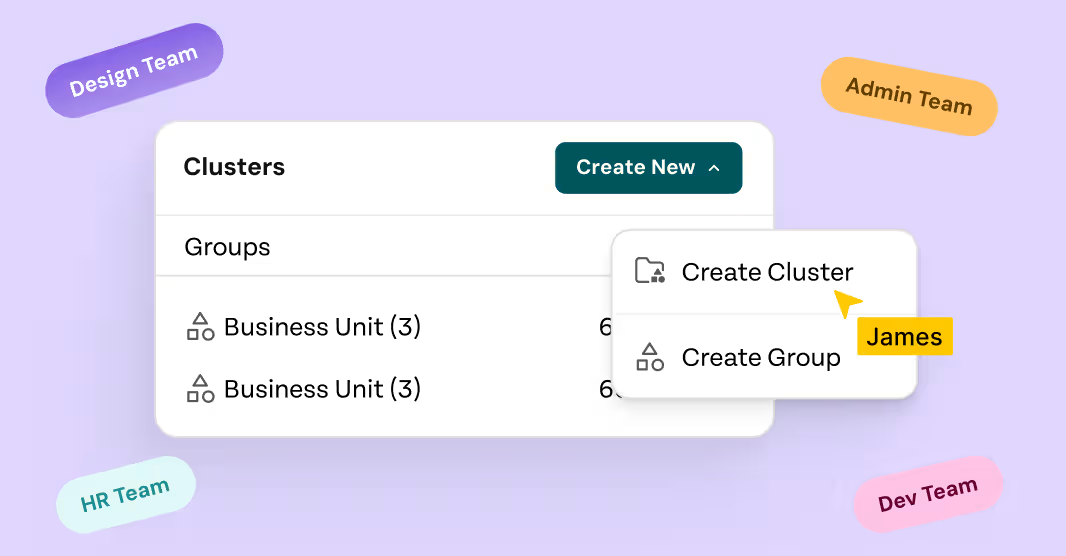
That's why we built Clusters and Groups.
Why Traditional Survey Tools Fall Short
Most survey platforms treat organizational structure like it's still the '90s. They give you rigid boxes: Department A, Department B, Team 1, Team 2. Simple? Sure.Useful? Not always.
Not if your reality looks like:
- A product manager who reports to Engineering but collaborates with Marketing
- A regional sales director overseeing three countries
- A matrix organization where people belong to functional teams and project squads
- A growing startup where roles shift faster than you can update spreadsheets
Your company is complex. Your people wear multiple hats. Why should your reporting be stuck in a straight line? We heard you. You need reporting that bends to fit your organization, not the other way around.
What Are Clusters and Groups?
Let's break it down.
A Cluster is how you organize your company's structure. It could be:
- Division (Engineering, Sales, Marketing)
- Region (North America, EMEA, APAC)
- Department (HR, Finance, Operations)
- Function (Product, Customer Success, R&D)
- Or literally anything that makes sense for your organization
Groups are the actual units within each cluster. Example under "Division," you might have:
- Engineering Division
- Sales Division
- Marketing Division
Under "Region," you'd have:
- North America
- APAC
- Europe
Each cluster has multiple groups, and each group may have one or more heads. You define who leads each group using the Group Head Title—the role responsible for groups within that cluster. If your cluster is "Division," your group head might be a "Director." If it's "Region," maybe it's a "VP."
Simple concept. Powerful execution.
How Clusters and Groups Mirror Real Organizational Life
Here's where it gets interesting. Unlike traditional tools that force people into single boxes, ThriveSparrow lets reality win:
People can belong to multiple groups. That product manager? She's in both Engineering Division and the Innovation Team. No problem.
Group Heads can lead multiple groups. Your Director oversees both Engineering and Product? They'll see combined data for both and can filter to view each separately.
Multiple people can lead the same group. Got co-heads or an interim leader during a transition? Both can access the same reports without duplicate groups.
Updates happen your way. Manually add people through the People Directory, or upload a CSV with comma-separated values for multiple groups. Your choice.
This isn't just convenient—it's essential for companies operating in the real world.
How to Set Up Clusters and Groups
Step 1: Create Your Cluster
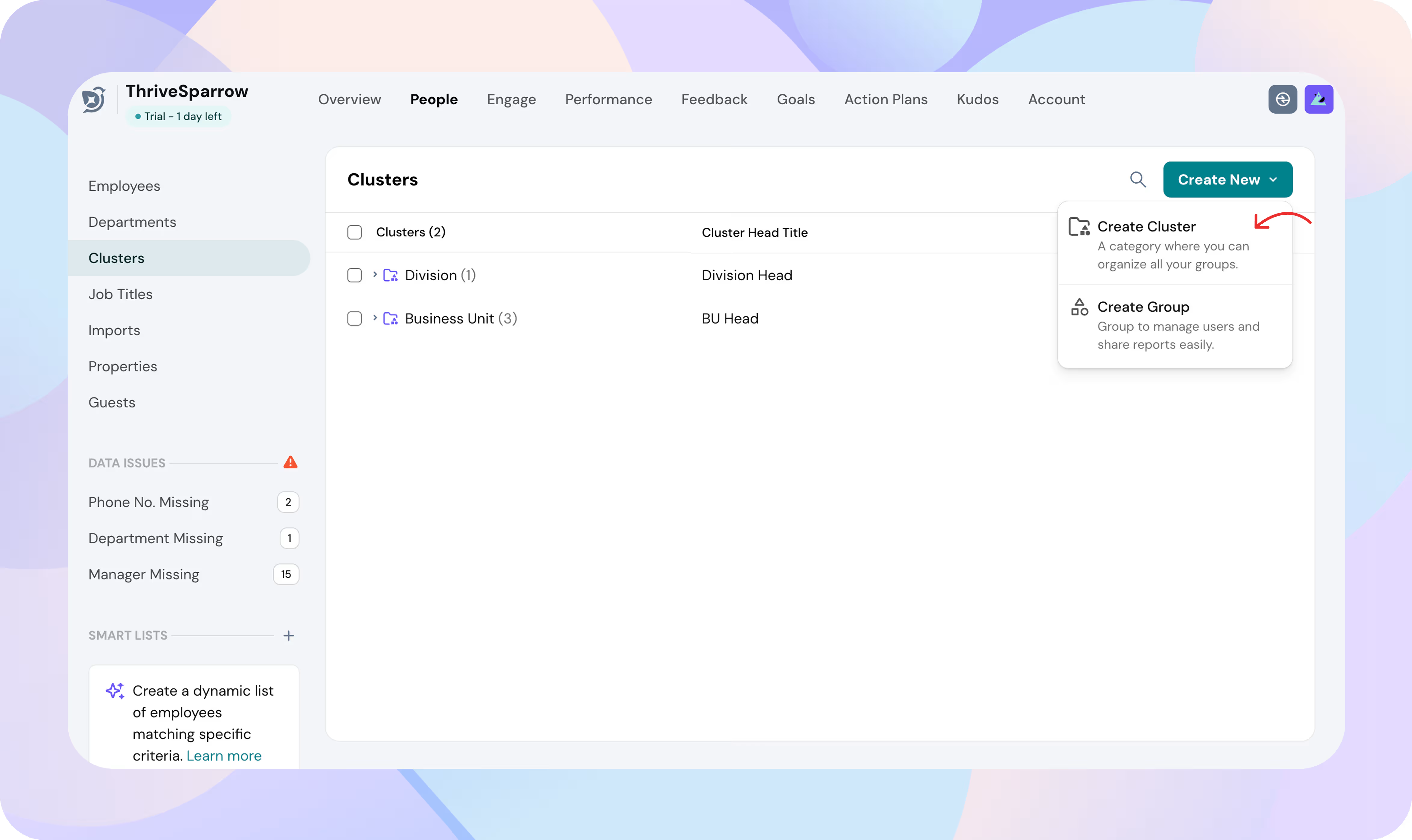
Go to People Directory → Clusters. Add a cluster (like "Division") and define the group head title (like "Director"). You're basically saying, "This is one way we organize ourselves."
Step 2: Add Groups
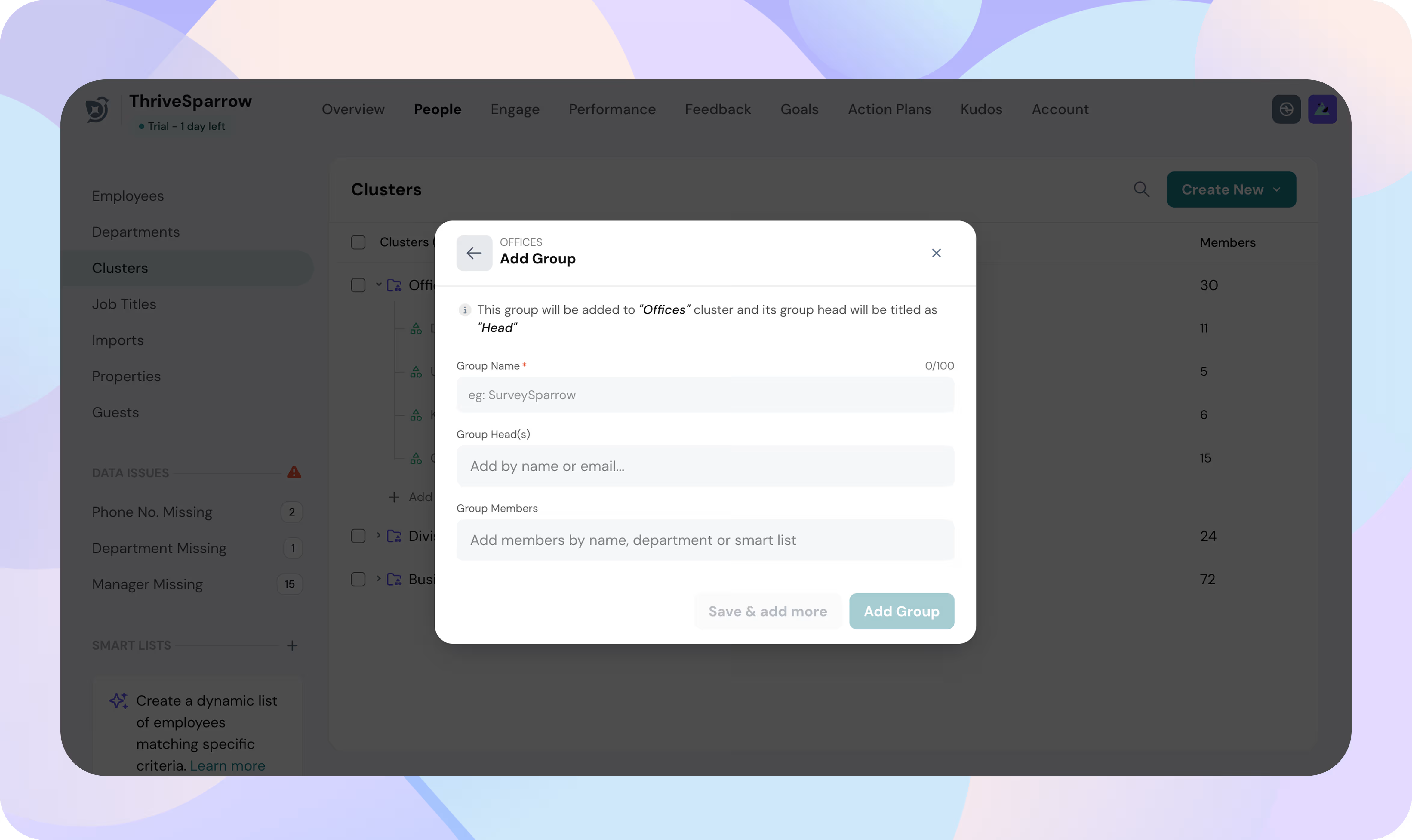
Click into your cluster and create groups—"Engineering Division," "Sales Division," whatever matches your structure. Assign group heads—one or many, your call.
Step 3: Add Member
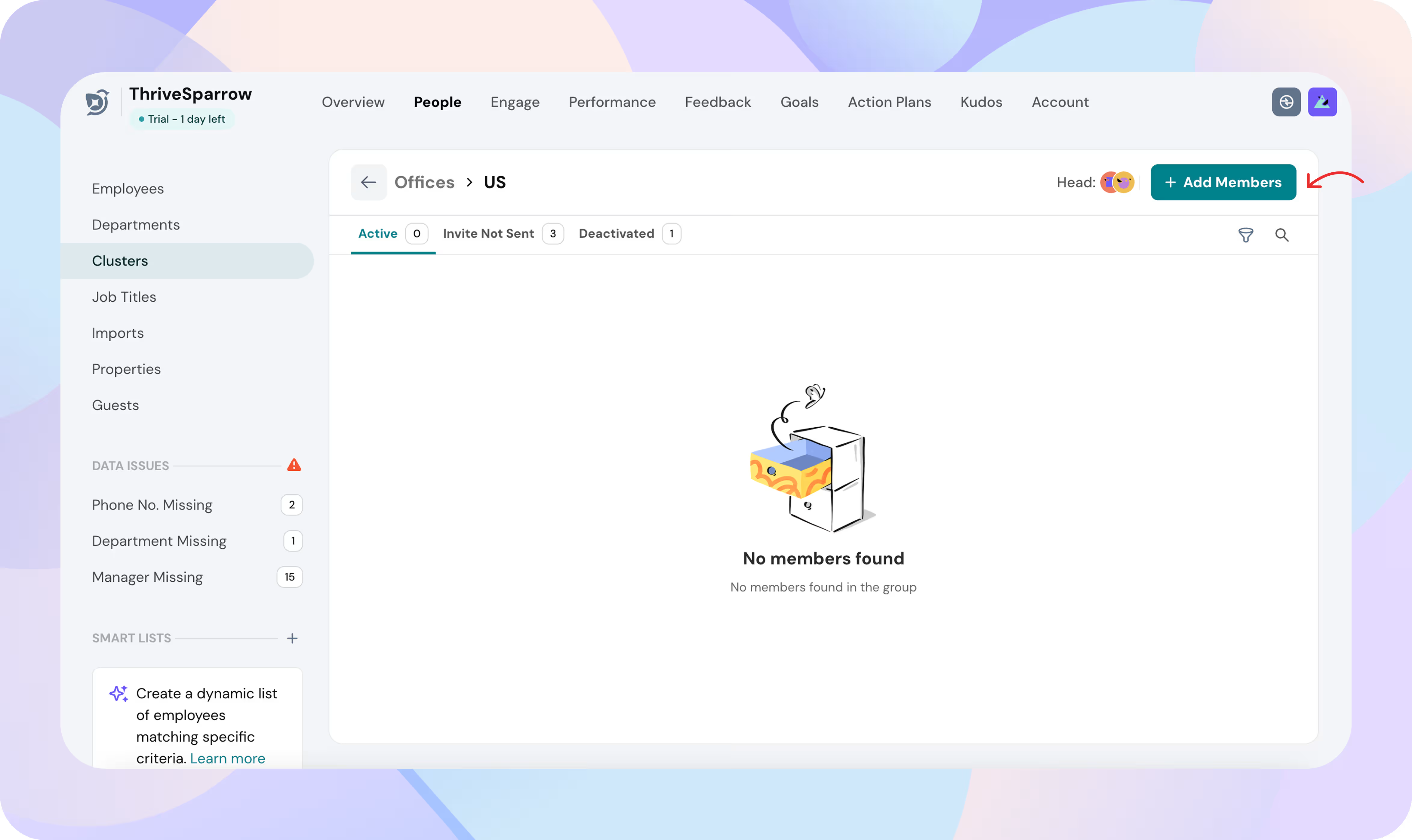
Either manually add people to groups or upload a CSV in our format. Want someone in three groups? Done.
Need to edit? Rename clusters, reassign group heads, move people around—it's all straightforward.
What This Changes for Your Reporting
This is where Clusters and Groups transform from "nice feature" to "game changer."
Every Leader Gets Their Data, Automatically
When you run an engagement survey, reports can be grouped by any cluster or filtered to specific groups. Your Director of Engineering logs in and sees only Engineering Division data. Your VP of North America filters by Region—there's her team's results.
The right data, in the right hands, at the right time. No manual exports. No custom reports. No waiting on HR.
Group Reports Give Leaders True Ownership
Until now, managers could see their direct reports' data. Now, with Group Reports, group heads get the same power for their entire group.
Enable it in Survey Configuration → Anonymity & Visibility Settings, and group heads can toggle between viewing data as a "Group Head" or as a "Manager." Leading multiple groups under the same cluster? They see aggregated data across all groups, with filters to drill into each one.
You can configure permissions separately for each type of group report according to their role —which aspects of the report can they see, who can create action plans, start conversations, access benchmarks, or filter data. Leaders get what they need without drowning in noise.
Privacy Stays Airtight
Group reports only appear when your anonymity threshold is met. If a group doesn't have enough responses, the data stays hidden. Group heads see aggregated insights, never individual responses.
Everything Works Together Seamlessly
We've integrated the old "Manager" filter into this new framework as a default cluster called "Team." All your clusters default or custom show up in Group By and Filter options across Engage reports.
Want to compare Engineering versus Sales? Group by Division. Need to isolate your office location? Filter by Location. It all flows together.
How to Import Your Data
Using CSV? Each cluster appears as a column. Assign people to multiple groups with our custom formatting.
Using an HRIS integration? Even better. If your HR system includes a field that matches a cluster name (such as Division or Region), employees are automatically synced and assigned to the correct groups. Your data stays up to date—without you lifting a finger.
Why This Matters
Let's zoom out for a second.
Your org structure isn't an afterthought it's how work gets done. When a regional VP can't see regional data, or when a division head has to email HR for a custom report, engagement insights lose momentum. Leaders can't act fast. Surveys become admin exercises instead of strategic tools. Clusters and Groups fix that. They put insights in the right hands, at the right time, with the right context. David from a Brisbane-based SEO agency says, “Visibility is key to decision-making,” highlighting how structure directly impacts execution speed.
Whether you're a Chief People Officer comparing business units, a Director focused on your division's sentiment, or a People Ops manager updating memberships via CSV, you now have the flexibility you need.
No more one-size-fits-all hierarchies. No more "sorry, our tool can't do that." Just a configurable framework that supports matrix reporting, multiple group heads, multi-group membership, and data privacy—without sacrificing ease of use.
Ready to Get Started?
Clusters and Groups are live now in the Engage module.
Already using ThriveSparrow? Here's how to begin:
- Go to People Directory → Clusters
- Build the structure that reflects your organization
- Configure Group Reports in your next survey
- Watch leaders light up when they see data that actually makes sense
New to ThriveSparrow? Now’s the perfect time to try a platform that adapts to your organization—not the other way around. Start your free 14-day trial and discover how Clusters and Groups, plus our complete engagement suite, help you turn employee feedback into action.
At ThriveSparrow, we believe employee feedback should be actionable at every level of your organization. Clusters and Groups are another step toward making that happen.